Controls Found on the Toolbar
Every page contains common controls and its own set of applicable controls. The controls on a page are dependent on the functionality provided by that page. The following are some commonly used controls you may see on a page.

 |
Controls that are specific to a page are described in the help topic for that page.
|
Click a button to jump to the description about that button:
Buttons on the Toolbar
These are the common buttons that appear on the toolbar of many of the Servigistics pages:
|
New
|
Previous
|
Description
|
||||||||||||
|---|---|---|---|---|---|---|---|---|---|---|---|---|---|---|
 |
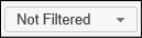 |
This is available for pages that support Advanced Filters and Configurable Filters.
• For Advanced Filters, You can click the dropdown arrow and perform any of the following actions:
◦ Select and apply an existing filter
◦ Select Go To Advanced Filters to open the Advanced Filters page where you can define your own filter
◦ Select a review reason to filter by that review reason.
• For Configurable Filters, you can perform either of the following actions:
◦ Click the dropdown arrow to select and apply an existing filter.
◦ Click the dropdown arrow and select None to remove the filter.
◦ Click to open the Configurable Filters page where you can define your own filter.
|
||||||||||||
|
|
 |
Click this button to open the Configure pop-up window where you can configure the display of the page.
|
||||||||||||
|
|
 |
Select a record and click this button to make a copy of the selected record.
|
||||||||||||
|
|
 |
Select a record and click this button to delete the selected record.
|
||||||||||||
|
|
 |
Click this button to open a new email message using your default email application.
|
||||||||||||
|
|
   |
Click either of these buttons to export the data on the page.
|
||||||||||||
 |
 |
Click this button to display a dropdown list of related pages and select a page to display that page.
|
||||||||||||
|
|
   |
Click any of these buttons to open the Servigistics Help Center with the specific help topic associated with the page.
|
||||||||||||
|
|
 |
Click this button import data.
|
||||||||||||
|
|
Layout
|
Click this button to open the dropdown list for the layout options of the page.
|
||||||||||||
 |
 |
Click a button to change the time period on the page:
|
||||||||||||
|
|
 |
This button opens the Change Sequence page where you can change the order of the defined parameters.
|
||||||||||||
|
|
 |
This button allows you to set multiple single-select filters. The benefit of using the multi-select button is the page only reloads once instead of reloading for each single-select setting.
|
||||||||||||
|
|
 |
Click this button to open a pop-up window where you can add information. The window that opens contains specific information for the page for which it belongs.
|
||||||||||||
|
|
 |
Click this button to open a dropdown list of options for creating a new record.
|
||||||||||||
|
|
 |
Click this button to refresh the page.
|
||||||||||||
|
|
 |
Click this button to return to the previous page.
|
||||||||||||
|
|
 |
Click this button to save any changes made on the page.
|
||||||||||||
|
|
 |
Click this button to select all records in the listing. To clear all selections, click the button again.
|
||||||||||||
 |
 |
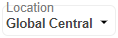
This button allows you to limit the records displayed to those matching the specified criteria.
• The field that is being filtered is displayed in a light font on the top of the button. In the example, the field being filtered is Location.
• The selection for that field is displayed in a bold font on the button. When the button is clicked, a dropdown menu appears:
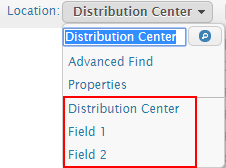 In the example, the selection is set to Global Central. Therefore, only records that have a Location equal to Global Central are displayed.
The dropdown menu has a few tools that can help you find what you want to specify if you do not know the exact words to enter. Once the dropdown menu is displayed you can do any of the following:
• Enter all or part of the item name to be selected in the text box.
• Click
 to open the Find window, where you can enter selection criteria to search and find matching records. to open the Find window, where you can enter selection criteria to search and find matching records.• Select All to remove existing selections and populate the listing with all possible records.
• Select Properties to open the Part Properties or Location Properties page, where the specific properties can be reviewed.
• Select an item in the list of recently used matches that appear below the dividing line to populate the page with only the records that match that selection.
|
||||||||||||
|
|
|
Click this button to open a view-only window that is populated with the information associated with the selected record.
|

Discard Changes Button

Click this button to discard all unsaved changes on the page.
Related topics