Using the Servigistics Help Center
The Servigistics Help Center is designed with feature-rich topics that provide insight and procedural guidance for all areas of the Servigistics application. There are two ways you can access the Servigistics Help Center:
• Method 1 {Preferred}
Sign in to the Servigistics application. Once you are signed in to the Servigistics application, there are several different ways you can access help. Each method opens the entire, fully functioning Servigistics Help Center in a new pop-up window, with the topic that is loaded being specific to the type of help that was invoked.
|
Main Help
|
The
 button is on the upper right corner of the page header of every page. When this button is clicked the Servigistics Help Center is opened in a new pop-up window with the Welcome topic displayed. button is on the upper right corner of the page header of every page. When this button is clicked the Servigistics Help Center is opened in a new pop-up window with the Welcome topic displayed. |
|
Page-Level Help
|
 or is on the title bar of every page. When this button is clicked the Servigistics Help Center is opened in a new pop-up window with the specific topic that relates to the application page. or is on the title bar of every page. When this button is clicked the Servigistics Help Center is opened in a new pop-up window with the specific topic that relates to the application page.Page-Level help is accessed a little differently on pages that use Next Generation View. The button is on the bottom right of the page. When this button is clicked the Servigistics Help Center is opened in a new pop-up window with the specific topic displayed that relates to the application page.
|
|
Container-Level Help
|
The
 button is on the title bar of every container on the Interactive Planner Worksheet and pages that use Layout Manager. When this button is clicked the Servigistics Help Center is opened in a new pop-up window with the specific topic displayed that relates to the container. button is on the title bar of every container on the Interactive Planner Worksheet and pages that use Layout Manager. When this button is clicked the Servigistics Help Center is opened in a new pop-up window with the specific topic displayed that relates to the container. |
|
Field-Level Help
|
Some pages have the capability to display help text at the field level. This is a newer piece of functionality that is being rolled out to more pages over time. If a page has field-level help available, the page-level help topic has this button displayed at the beginning of the topic:
 There are two ways to view field-level help:
• On a page that does not use Next Generation View:
On a field heading, right-click to display the action menu and select View Definition.
• On a page that uses Next Generation View:
Hover the mouse over a column heading to display the menu selector, then click the menu selector to display the pop-up window. Select
 and click View Definition. and click View Definition.The Servigistics Help Center is opened in a new pop-up window with the specific field definition displayed.
|
• Method 2
Visit the PTC Help Centers website, where all Servigistics Help Centers are available to users that have the proper access credentials.
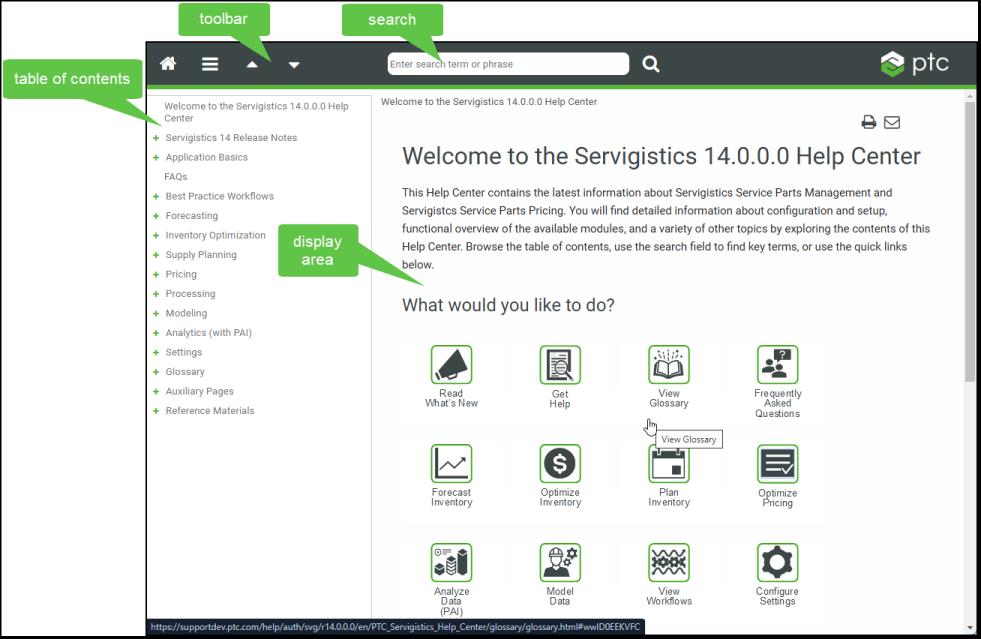
When a Servigistics Help Center is opened, the content is displayed in a frame that has these sections which control the navigation, search, and display functionality.
• Toolbar
• Search
show the example
The Toolbar
The toolbar is available at the top of the Help Center window. These are the available buttons:
Button | Label | Description |
|---|---|---|
 | Home | Opens the home page. |
 | Menu | Displays or hides the Table of Contents. |
 | Previous | Opens the topic above the current topic in the table of contents. |
 | Next | Opens the topic below the current topic in the table of contents. |
 | Search | Searches the help center for content that matches the search term or phrase. |
Search
You can use the search tool ( ) to quickly find information in the Help Center.
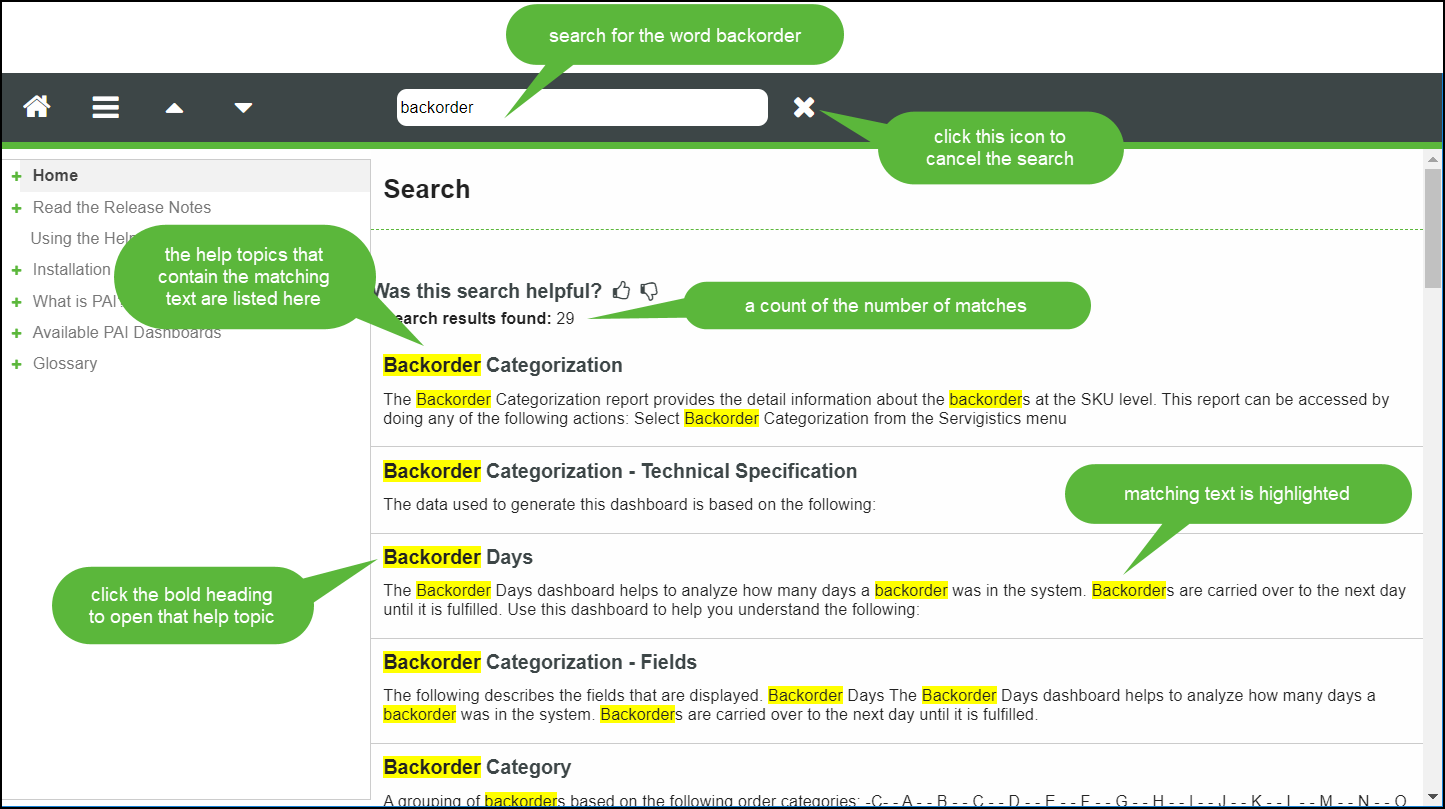
) to quickly find information in the Help Center.Enter a word or phrase in the search field and click  . Matching help topics are displayed.
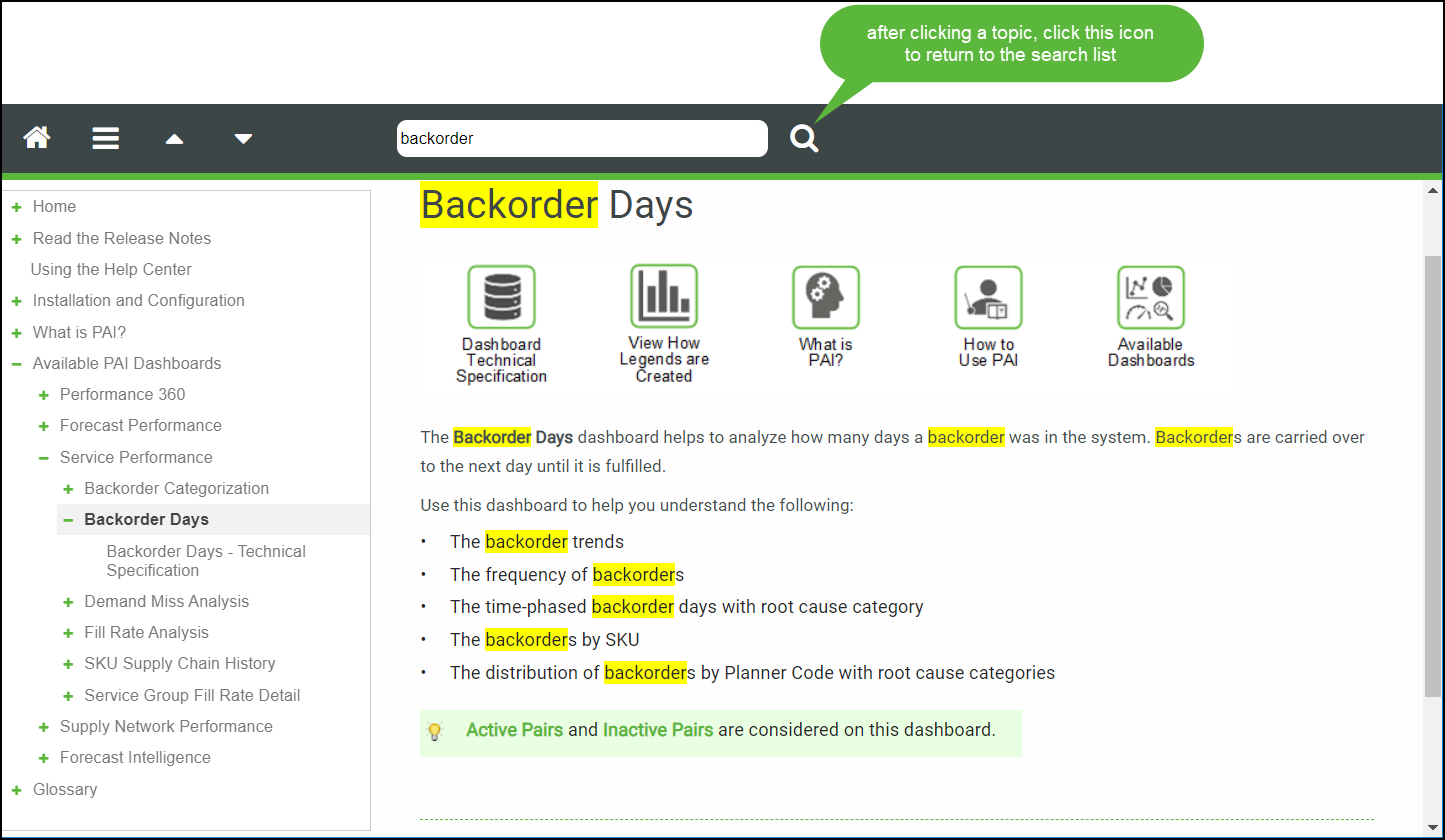
. Matching help topics are displayed.The words in the topic that matched what you entered in the search box are highlighted in the list of results and when viewing the associated topic. For example:
 | You can also right-click a topic in the list and select an open method from the list. A copy of the help center opens in a new window or tab, depending on what you selected. |
Use these search tips to obtain the most relevant list of matches.
1. Search using a term or phrase
To search for topics that contain multiple words, just enter the words in the search. An implicit AND logical operator is applied to multiple search words.
For example, search for release notes to find all help topics containing release notes, release and notes.
| | The words do not have to be next to each other in the help topic, but they both must appear in the topic for the topic to be included in the results list. |
2. Search using an “exact phrase”
To find an exact phrase, enclose the phrase using double quotation marks.
For example, search for "release notes" to find all help topics containing the exact phrase release notes.
3. Search using partial words or numbers
To find words containing certain characters, start typing in the search. For example cas would return topics that contained matches such as case, forecast, and cash.
The Table of Contents
The Table of Contents is listed along the left side of the Help Center window. It can be displayed or hidden by clicking found on the toolbar.
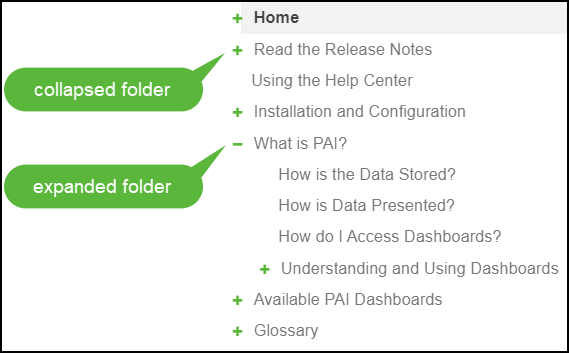
found on the toolbar.• Folders can be expanded or collapsed.
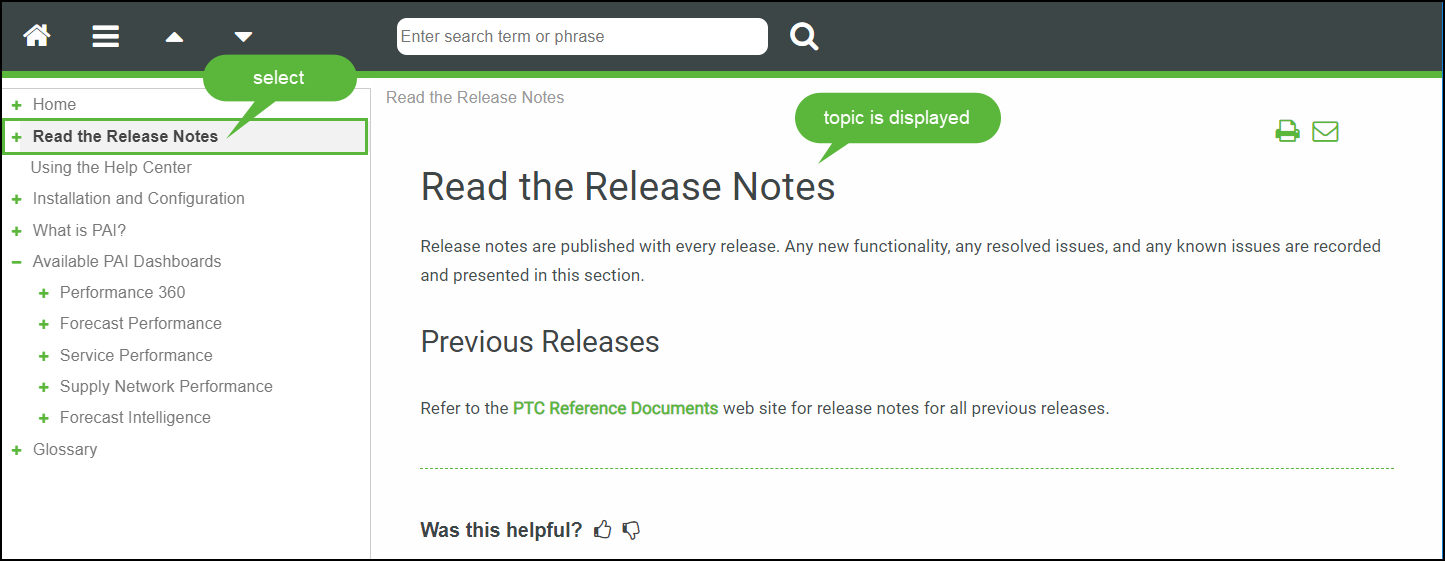
• Selecting a topic displays that topic in the topic display area.
The Display Area
The display area is where the topic pages are loaded for viewing. Topics can be loaded to the display area using any of the following methods:
• Select a topic from the Table of Contents
• Enter search criteria and select a page from the resulting list
• Select the page-sensitive help button on an application page
These are the standard help center buttons that are available in the display area:
Buttons | Label | Description | ||
|---|---|---|---|---|
 | Breadcrumb | Appears at the top of the page and shows where the topic is in the tables of contents. Click a link on the breadcrumb to jump to that level in the table of contents.
| ||
 | Page Dropdown Toggle | Appears at the top right corner of the page when collapsible sections are on the page. • Click to display all collapsed text on the page.• Click  to collapse all collapsible text on the page. to collapse all collapsible text on the page. | ||
 | Print | Appears at the top right corner of the page, click this button to print the topic that is currently displayed in the topic display area. | ||
 | Send feedback | Appears at the top right corner of the page, click this button to send feedback to PTC about the topic you are viewing. Please include the following information in your message: • Description • Company • Product • Product release • Help topic title • Level of expertise in the product (beginning, intermediate, advanced) • Comments
| ||
 | Back to top | Appearing at the bottom right corner of the page when the user scrolls through the content of topic, click this button to return to the top of the current topic. |
These are the standard help center conventions that are used in the display area:
Convention | Description |
|---|---|
This represents a link to another help topic. For example:  The text becomes underlined when you hover the mouse over text.  Click the link to view the related topic. | |
 | This represents a collapsed section, such as a list or more paragraphs of information. Click the link to display the information that is hidden. Click the link a second time to collapse the display of the information. |
Return to previous topic Go back | Do one of the following to go back to the previously viewed topic. • In Internet Explorer – press the Backspace key • In Microsoft Edge – press and hold the Alt key and press the left arrow key • In Firefox – press the Backspace key • In Chrome – press and hold the Alt key and press the left arrow key |