Layout Manager
The Layout Manger is a tool that enables the display of content from multiple pages on a single page.
Each page that uses Layout Manager has a page toolbar, one or more containers, and each container has a toolbar.
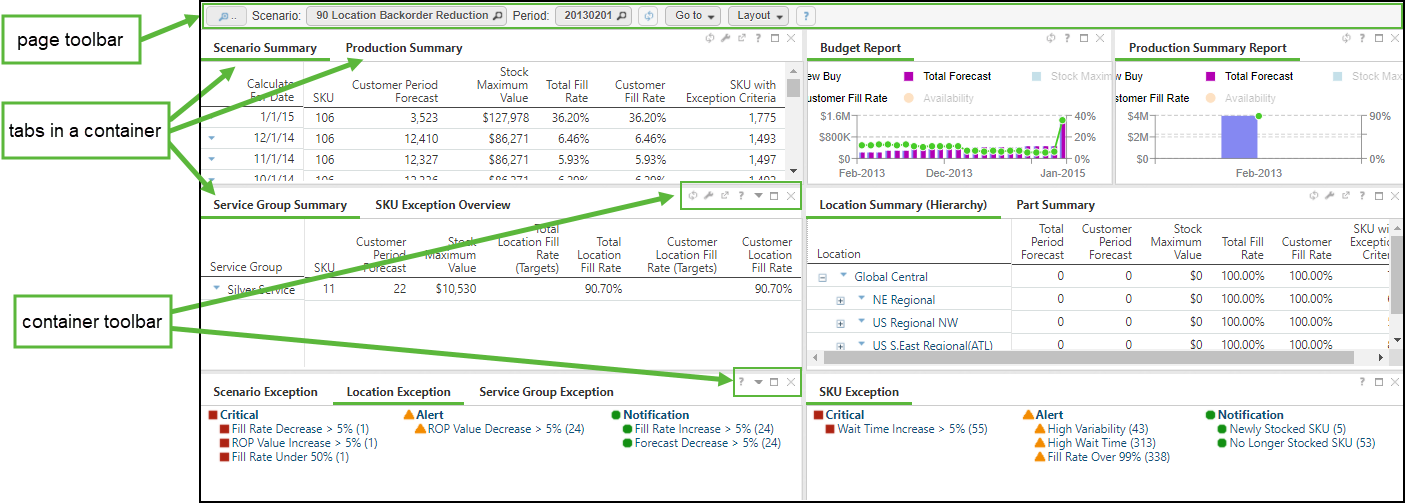
One of the most prominent features of the Layout Manager is the ease of configuration. You can change the look of your page by moving containers, changing the size of containers, configuring the contents of container, and removing containers you don’t want to see. Some containers even provide additional functionality like refresh or a link to a corresponding page.
 |
The availability of the controls is related to the functionality provided by the container.
|
This chart lists the various actions you can take to customize what containers are on the page, where they are displayed on the page, what is displayed on the container, the size of the container, and functions that are available on a container.
|
Action
|
How To
|
||
|---|---|---|---|
|
Move a container
|
Click and hold the title of the tab in the container while you drag and drop it to a new location on the page.
|
||
|
Move a tab to or from a container
|
Click and hold the title of a tab in the container while you drag and drop it to a different container on the page.
• You can drop the tab into an existing container to combine tabs in one container.
• You can drop the tab outside of an existing container to create a new container.
|
||
|
Remove a container
|
Either of these methods will remove a container from the page.
• Click
 on the toolbar of the container. on the toolbar of the container.• On the toolbar of the page, click Layout and select Manage Containers. Click
 that is next to the container name you want to remove from the display. that is next to the container name you want to remove from the display. |
||
|
Resize a container
|
Use one of these methods to resize a container.
• Click
 on the toolbar of the container to maximize the container size. on the toolbar of the container to maximize the container size.• Click
 on the toolbar of a maximized container to restore it to its original size. on the toolbar of a maximized container to restore it to its original size.• Click and hold the horizontal or vertical edge of the container and stretch or shrink the container to a new height or width.
• Select Adjust Height on the toolbar of the page and select a sizing action.
|


Related topics