The Layout Button
Pages that use Layout Manager have the same toolbar buttons that are found on other pages, and a Layout button () for managing the page display.
When you click menu opens that contains these options.
|
Menu Option
|
Description
|
||
|---|---|---|---|
|
Save Layout
|
If you made changes to your page layout, select this option to save your changes. When you return to this page your layout is retained.
|
||
|
Load Saved Layout
|
If you made changes to your page layout and have not saved them, you can discard those changes by selecting this option.
|
||
|
Restore Default Layout
|
If you are using a saved layout you can always return to the default layout by selecting this option. If there is a saved layout, selecting the Restore Default Layout option removes the saved layout.
|
||
|
Set Default Layout
|
If you made changes to the page layout, select this option to save those changes as the default layout for all users.
|
||
|
Restore Original Default Layout
|
Select this option to remove the saved default layout and revert to using the default layout that was included at the time of implementation.
|
||
|
Adjust Height
|
Each page that uses Layout Manager has a pre-defined page size and container height. Select this option to open a list of actions that can be applied to the container height.
• Select Increase to increase the height of all of the containers, which also increases the length of the page.
• Select Default to reset the size of the containers and the length of the page to the default setting.
• Select Decrease to decrease the height of all of the containers, which also decreases the length of the page.
|
||
|
Manage Containers
|
Each page that uses Layout Manager has a pre-defined set of containers. Select this option to open the list of containers that can appear on the page. You can then click a container in the list to add or remove the check mark.
• A container with a
 is displayed on the page. is displayed on the page.• A container without a
is not displayed on the page.• A container that has a
that cannot be removed is the default container for the page.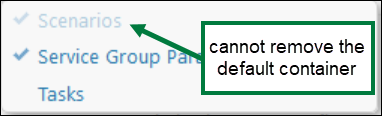 |

Related topics