Next Generation View
The Next Generation View is a feature-rich page layout that enables you to control the display and filtering of page content. These are the key pieces of functionality provided with Next Generation View:
|
Action
|
How To
|
||
|---|---|---|---|
|
Move a Column
|
Click and hold a column heading, then drag and drop it left or right to a new location on the listing.
|
||
|
Resize a Column
|
Click and hold the separator between two columns, then drag and drop it left or right.
• Drag and drop the separator to the left to increase the column width on the right of the separator and reduce the column width on the left of the separator.
• Drag and drop the separator to the right to increase the column width on the left of the separator and reduce the column width on the right of the separator.
|
||
|
Pin a Column
|
Columns that are pinned appear to the left of the Pinned Separator. Pinned columns are always shown on the page when you scroll vertically to the right.
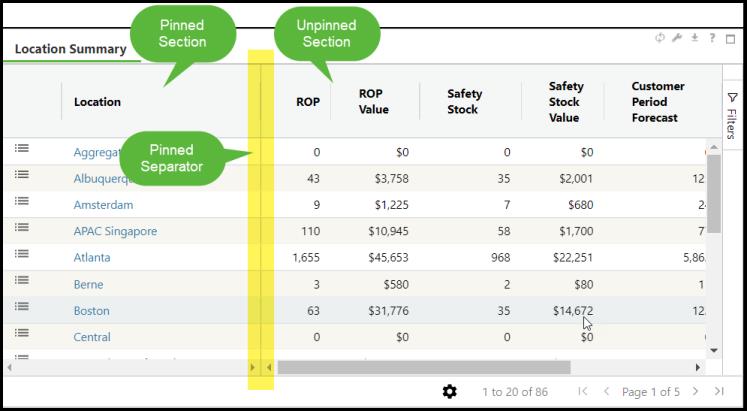 • Click and hold a column heading, then drag and drop it to the left of the Pinned Separator to pin the column.
• Click and hold a pinned column heading, then drag and drop it to the right of the Pinned Separator to unpin the column.
|
||
|
Filter a Column
|
Hover the mouse over a column heading to display the menu selector, then click the menu selector to display the pop-up window.
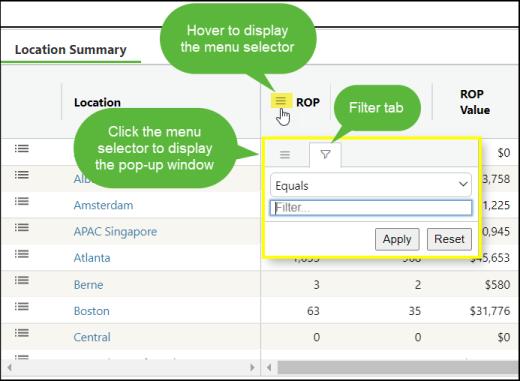 Select
 and do the following: and do the following:1. Select an operator from the drop-down list.
2. Enter the operand value in the text box.
3. Click Apply.
|
||
|
Filter by Multiple Columns
|
Click the Filters button on the right side of the page to display the Filters pop-up.
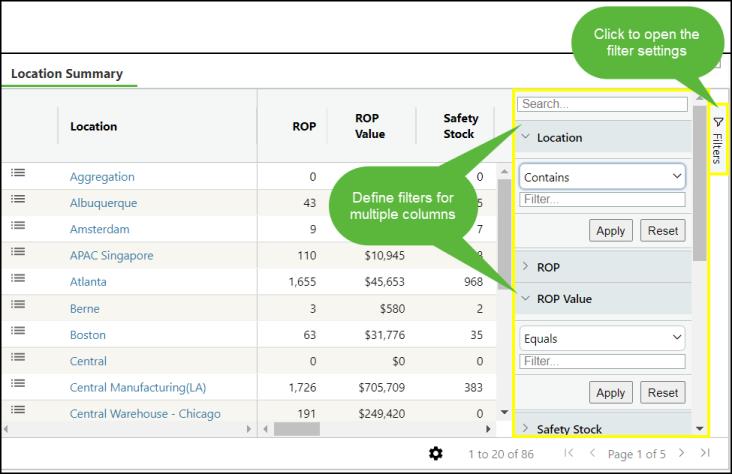 Do the following for each column that you want to filter:
1. Select an operator from the drop-down list.
2. Enter the operand value in the text box.
3. Click Apply.
|
||
|
Remove a Column Filter
|
Hover the mouse over a column heading to display the menu selector, then click the menu selector to display the pop-up window.
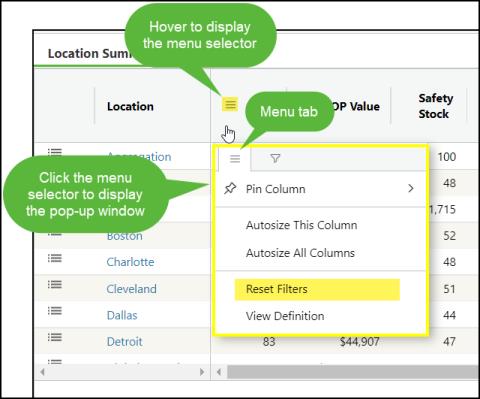 Select
 and click Reset Filters. and click Reset Filters. |
||
|
Sort by Column
|
Click a column heading to sort the data on the page according to that column.
• Click once to sort in ascending mode
• Click a second time to sort in descending mode
• Click a third time to remove the sort
|
||
|
Sort by Multiple Columns
|
Do the following to sort by multiple columns:
1. Click a column heading to apply the primary sort to that column.
2. Then press and hold Ctrl, then click a second column.
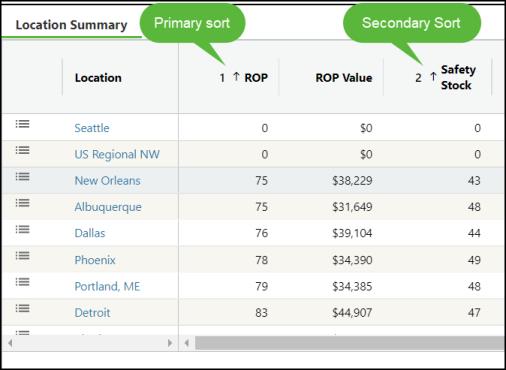 3. Repeat Step 2 for additional levels of column sorting.
|
||
|
Configure Columns for Display
|
Click
 on the bottom right of the page to open the Configure tool. on the bottom right of the page to open the Configure tool. |
||
|
Configure Settings
|
Click
 on the bottom right of the page to open the Settings pop-up window. You can adjust the display format of the fields and click Apply. on the bottom right of the page to open the Settings pop-up window. You can adjust the display format of the fields and click Apply. |
||
|
Page-Level Help
|
Click on the bottom right of the page to open the Servigistics Help Center with the specific topic that relates to the application page.
|
||
|
Field-Level Help
|
Hover the mouse over a column heading to display the menu selector, then click the menu selector to display the pop-up window.
Select
and click View Definition. |

