Work Queue Page
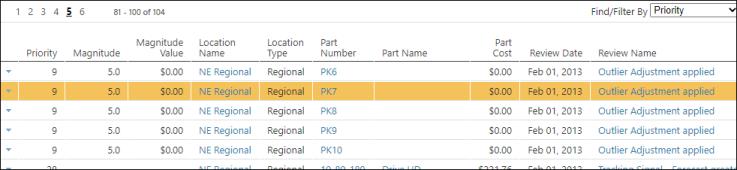
This page is where you can see all records on the order plan for the selected location in a prioritized order. You can fully review and action one part at a time on this page, which decreases the need to review the part multiple times for different exceptions. Once a part is reviewed, all review reasons at all locations that a planner has subscribed to are delayed from reappearing in the work queue while the planner is in the review process.
Reviewing the information on this page is Step 2b of the Daily Planner Workflow.
This work queue can be accessed in one of two ways.
• To directly access the work queue, enter Work Queue in the Go to box to search for the page, then select the page from the resulting list of matches.
• To access the work queue from the Interactive Planner Worksheet, click Advanced Filters and select Go Up to Work Queue.
 |
In order to display a work queue on the Work Queue page, you must select an advanced filter.
|
These are the actions you can perform on this page:
|
Action
|
Description
|
||||||||||
|---|---|---|---|---|---|---|---|---|---|---|---|
|
My Review Reasons
|
Click this button to display a dropdown list of the review reasons that can be selected. Select one of the following:
• Go To Advanced Filters, to create or modify an advanced filter.
• Not Filtered, to remove all review reason filtering.
• My Review Reasons, to display records that have a review reason that are in your review subscriptions.
|
||||||||||
|
Part Reviewed
|
Click this button to tag all review reasons related to the selected part for all location as reviewed. Confirming the action removes the part reviewed records from the work queue.
|
||||||||||
|
SKU Reviewed
|
Click this button to tag all review reasons for the selected SKU as reviewed. Confirming the action removes the part reviewed records from the work queue.
|
||||||||||
|
Manage
|
Click this button to manually set the delay date.
|
||||||||||
|
Show or Hide Delayed/Reviewed
|
Select an option from the dropdown list to show or hide records.
• When reviewing by Part, the selection made shows distinct parts displayed by the highest priority Review Reason.
• When reviewing by SKU, the selection made shows distinct SKUs displayed by the highest priority Review Reason.
Valid options are:
|
||||||||||
|
Date Type
|
This filter is used with the Date Range filter. Select a date type from the dropdown list to filter by the related date fields. The dates are evaluated in the following order by Date Type:
For example:
• Date Type = Ordered
• Date Range = Last 60 Days
The records are evaluated and displayed in this order:
• Display records where the Recommended Order Date is within the Date Range
◦ If the Recommended Order Date is blank then display records where the Actual Order Date is within the Date Range
▪ If the Actual Order Date is blank then display records where the Effective Order Date is within the Date Range
▪ If the Effective Order Date is blank then display records where the On Hold Order Date is within the Date Range
▪ If the On Hold Order Date is blank then display records where the Planned Order Date is within the Date Range
|
||||||||||
|
Date Range
|
Select a date range to limit the display to only records that match the date range selection. Valid options are:
• None — All records are displayed in the listing.
• Today
• Last 365 Days
• Next 7 Days
• Next 30 Days
• Next 60 Days
• Next 90 Days
• Next 365 Days
• Custom — Select this option to display the beginning date and ending date selectors. Specify the beginning and ending dates to define the date range.
|
||||||||||
|
Include Children
|
Select this checkbox to include the child locations of the selected location in the results. This checkbox remains on the page in a session of the application even when you leave the page and return to it. It is also retained on the page in the subsequent sessions, even when you terminate the current session and log in to the application again.
|
||||||||||
|
Include Hidden
|
Select this checkbox to include any records that are hidden on the Interactive Planner Worksheet.
|
||||||||||
|
|
Click this button to return to the Planner 360° page.
|
||||||||||
 |
Click this button, next to a row, to display a dropdown list of related pages. Select a page to display that page. Options are:
• Interactive Planner Worksheet
• Dashboard View
• Demand Summary
• Stocking Policy
• Create Alert
• Create Journal
|