Splitting Orders by Vendor
When users have the need to maintain more than one vendor for a given SKU or the primary vendor for a SKU has capacity constraints, Servigistics can recommend splitting the original order requirement among all vendors assigned to the SKU. The system can:
• Split the order for a SKU based on the customer-specified percentages.
• Split the order if it is above the maximum order quantity limit of the vendor.
• Respect the minimum order quantities per vendor SKU.
Use these steps to split orders by vendor.
1. Enter the split percentage, minimum order quantity, and maximum order quantity values for the vendors you want to include in the split order.
To perform this step, modify the vendor location SKU lead time records for the vendors you want to include in the split order.
For each vendor location SKU lead time record, enter values in the following fields:
◦ Percentage Split - Verify that the sum of the Percentage Split values equals 100.
◦ Minimum Order Quantity - Not required. If left blank, will be treated as zero (0).
◦ Maximum Order Quantity - Verify that values do not conflict with existing maximum order quantities.
2. Run the Vendor Split AutoPilot process.
 |
The Vendor Split AutoPilot process runs as a separate process after the Generate Order Plan AutoPilot process.
The Vendor Split AutoPilot process is hidden by default. To display the process, set the ISMANUALPROC flag to y for PROCID = 1198 (PROCNAME= VendorSplitTask) on the AUTO_PILOT table.
|
If today’s order quantity (recommended or approved), exceeds the primary vendor pair’s minimum order quantity and a split percentage and/or maximum order quantity for any vendor SKU is specified, then Order Plan modifies the order quantity of the original primary vendor order and creates new orders for the additional vendors. New order quantities are determined according to the specified Percentage Split and/or Maximum Order Quantity values for the vendor location SKU lead time record for each vendor involved in the order. Dates such as Available Date, and Ship Date for new orders are derived from the original order for the primary vendor.
|
|
If the Minimum Order Quantity value is not specified for the primary vendor, Minimum Order Quantity is assumed to be zero (0).
|
Should any quantity remain unallocated after having created all new split orders, this quantity is added to the primary vendor order, ignoring any existing maximum order quantity constraint.
Regardless of what order policy a SKU is using, split orders are generated only for the current day.
3. Review the results on the Orders container of the Interactive Planner Worksheet or on the Procurement page.
On the Interactive Planner Worksheet and the Procurement page, the Recommended Actions field labels split orders with the value Vendor Split.
Examples
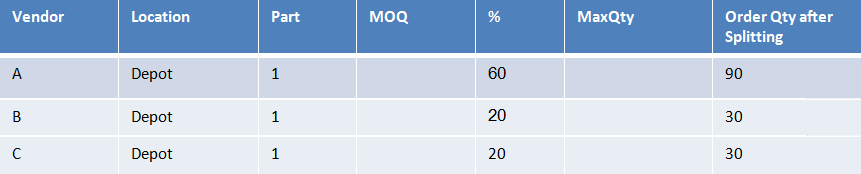
Example 1: Minimum order quantity is not defined.
Today’s order quantity for primary vendor A before splitting is 150.
After splitting, three orders are created with split quantities according to given percent values:
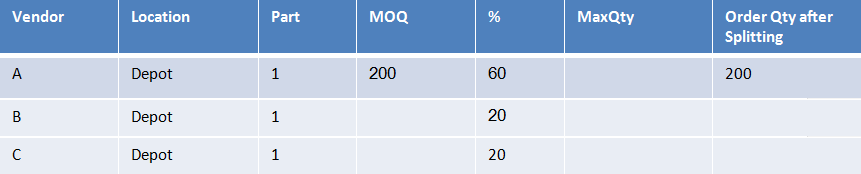
Example 2: Primary vendor minimum order quantity is greater than today’s order quantity.
Today’s order quantity is 150.
After splitting, the primary vendor is not split, quantity is increased to meet minimum order quantity:
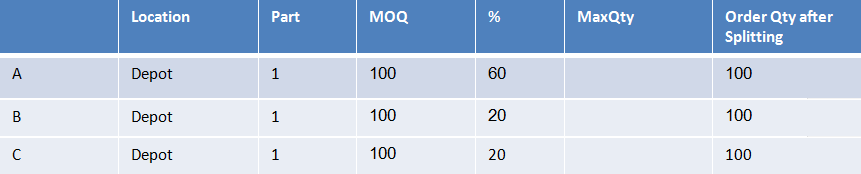
Example 3: Minimum order quantities and percentage splits defined for all vendors.
Today’s order quantity for primary vendor A before splitting is 150.
After splitting, the primary vendor order is split into three orders. Each order quantity is increased to meet minimum order quantity:
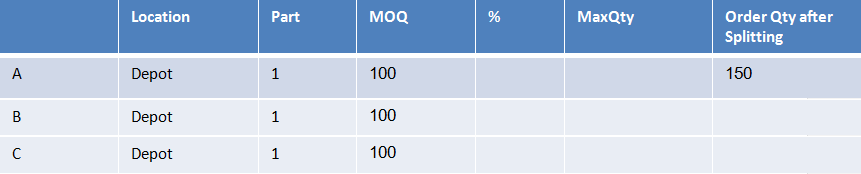
Example 4: No percentage splits or maximum order quantities defined.
Today’s order quantity for primary vendor A before splitting is 150.
After splitting, the primary vendor order is not split:
Example 5: Maximum order quantities defined for all vendors.
Today’s order quantity before splitting is 250.
After splitting, the primary vendor order quantity is split into three orders, and each quantity is limited by the maximum order quantity:
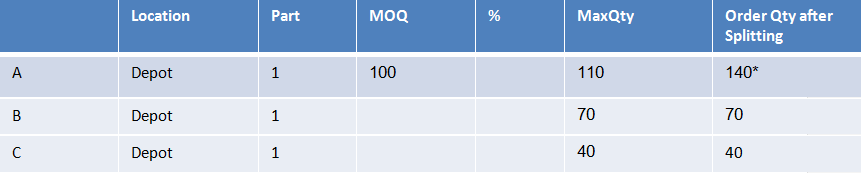
| | Remaining quantity was added to the primary vendor, thereby exceeding its maximum quantity. |