Creating/Modifying Price Approval Workflows
Step 1: Start the Process
Using the Go to box, enter price approval workflow. The Price Approval Workflow page appears.
Then, do one of the following:
• To create a price approval workflow: Click  .
.
.• To modify a price approval workflow: Click  for the price approval workflow.
for the price approval workflow.The Price Approval Workflow page appears with the General tab selected.
Step 2: Complete the General Tab
1. Complete/edit the fields in the top section of the General tab as necessary. [view field definitions]
2. If you are creating a new price approval workflow, click  . More fields and sections appear on the page.
. More fields and sections appear on the page.3. In the Segments section, define the segments that will be included and/or excluded in the selected price approval workflow. This defines which part-location SKUs are covered by the workflow.
◦ To include segments in the price approval workflow: Click  for Included Segments. The Find Segment page appears. Enter search criteria for the segment. Then, click Search. Segments matching the search criteria appear on the page. To select segments, highlight them and click OK.
for Included Segments. The Find Segment page appears. Enter search criteria for the segment. Then, click Search. Segments matching the search criteria appear on the page. To select segments, highlight them and click OK.◦ To remove segments from the price approval workflow: Click X for any segments listed for Included Segments.
◦ To exclude segments from the price approval workflow: Click for Excluded Segments. The Find Segment page appears. Enter search criteria for the segment. Then, click Search. Segments matching the search criteria appear on the page. To select segments, highlight them and click OK.
for Excluded Segments. The Find Segment page appears. Enter search criteria for the segment. Then, click Search. Segments matching the search criteria appear on the page. To select segments, highlight them and click OK.◦ To remove exclude segment assignments: Click X for any segments listed for Excluded Segments.
Step 3: Complete the Approval Role/Permissions Tab
Select the Approval Role/Permissions tab. This tab lets you define the price approval roles to be included in the workflow. Then, it lets you define the permissions for each included role at each workflow level.
• To add/remove price approval roles to the price approval workflow:
Click . The Edit Price Approval Roles page appears. Roles listed in the Selected box have access to the price approval workflow.
. The Edit Price Approval Roles page appears. Roles listed in the Selected box have access to the price approval workflow.◦ To add roles to the price approval workflow: Highlight the roles in the Available box and click  .
.
.◦ To remove roles from the price approval workflow: Highlight the roles in the Selected box and click  .
.
.Click Save to save your changes and close the page.
• To assign permissions for selected price approval roles:
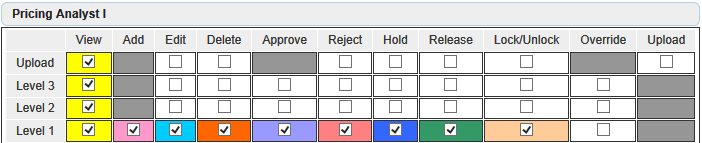
For each price approval role included in the workflow, you can assign permissions which indicate which operations can be performed on each workflow level for the role. The available permissions are:
◦ View
◦ Add
◦ Edit
◦ Delete
◦ Approve
◦ Reject
◦ Hold
◦ Release
◦ Lock/Unlock
◦ Override
◦ Upload
For each price approval role, check the permissions you want to grant for each workflow level.
Click to save your changes.
to save your changes.Step 4: Complete the Assign Business Rule Sets Tab
Select the Assign Business Rule Setstab. This tab lets you assign pricing business rules to workflow levels in the selected price approval workflow.
• To assign a pricing business rule to a workflow level in the price approval workflow:
Click for the desired workflow level. A new row appears on the page. Complete the fields for the row as necessary. [view field definitions]
for the desired workflow level. A new row appears on the page. Complete the fields for the row as necessary. [view field definitions]• To remove pricing business rules from a workflow level in the price approval workflow:
Check the pricing business rules you want to remove for a workflow level and click  for the workflow level.
for the workflow level.Step 5: Complete the Assign Skipping Rules Tab
Select the Assign Skipping Rules tab. This tab lets you assign one skipping rule per approval level for the price approval workflow. Skipping rules provide the ability to set conditions around a pricing business rule so that when the skipping rule is satisfied a price record is approved from one approval level to another approval level by skipping a specified number of approval levels in between.
• To assign a skipping rule to the price approval workflow:
 |
Skipping rules can only be added for price approval workflows that require 3 or more approval levels.
|
1. Click . The Skipping Rule window appears.
. The Skipping Rule window appears.2. In the Skipping Rule Name box, enter the name of the skipping rule.
3. For Skip From Approval Level, select the initial approval level. For Skip to Approval Level, select the approval level to skip to when the conditions of the skipping rule are satisfied.
4. Next, you assign the pricing business rules to be satisfied to allow skipping. These business rules define the conditions of the skipping rule. Note that at least one business rule is required to create a skipping rule.
To add a pricing business rule: Click . A new row appears. Set Ruleset Folder to the ruleset folder that includes the pricing business rule you want to use in the skipping rule. Then, click for Rule Name. The Business Rules page appears. Enter search criteria for the pricing business rule. Then, click Search. Pricing business rules matching the search criteria appear on the page. To select a pricing business rule, highlight it and click OK.
. A new row appears. Set Ruleset Folder to the ruleset folder that includes the pricing business rule you want to use in the skipping rule. Then, click for Rule Name. The Business Rules page appears. Enter search criteria for the pricing business rule. Then, click Search. Pricing business rules matching the search criteria appear on the page. To select a pricing business rule, highlight it and click OK.To edit a pricing business rule: Edit the Ruleset Folder or Rule Name fields as necessary.
To remove a pricing business rule: Check the rule and click .
.5. Continue to add, edit, and/or remove pricing business rules until you have the list of rules you want to include in the skipping rule. Once you have finalized the list of pricing business rules, click Create to save your changes and close the Skipping Rule window.
• To modify the skipping rule assigned to the price approval workflow:
Click for the skipping rule. The Skipping rule window appears. Make your changes as necessary and click Save.
for the skipping rule. The Skipping rule window appears. Make your changes as necessary and click Save.• To remove the skipping rule from the price approval workflow:
Highlight the skipping rule and click . A window appears asking you if you are sure you want to delete the skipping rule. Click OK.
. A window appears asking you if you are sure you want to delete the skipping rule. Click OK.