Demand Summary Page
Displays actual and forecasted demand for the selected SKU for all demand streams. If multiple demand streams are being used to forecast demand, the cumulative effects (if any) are displayed on this page.
The graph on this page is a graphical representation of the data in the Demand Stream and Forecast Stream grids. The graph dynamically updates when adjustments are made to the Demand Stream or Forecast Stream data. You can see where the data originates by matching the badge color on the page to the bar color in the graph. For example, the graph's blue bar is drawn using the grid row with a blue badge.
 |
Refer to Using Graphs for more information about graphs.
|
These are the actions you can perform on this page:
|
Action
|
Description
|
||
|---|---|---|---|
 |
Click this button to approve the recommended forecast.
|
||
 |
Click this button to disapprove the forecast.
|
||
 |
Click this button to approve the forecast and make it production.
|
||
 |
Click this button to run the AutoPilot process.
|
||
 |
Click this button to process changes.
|
||
|
Manage
|
Select an action from the dropdown list. Valid options are:
• Clear Forecast
• Copy/Move From
• Copy Move To
|
||
|
View
|
Select an action from the dropdown list. Valid options are:
• Reset to Default Graph
|
||
|
My Review Reasons
|
Select review reasons from the dropdown list.
|
||
|
Demand Stream
|
Displays the selected 12 slices of demand history for the demand streams for the selected SKU.
• Click
 for a demand stream. Each stream can be expanded to view the Demand, Adjustment, Non-Recurring and Copy Demand rows. for a demand stream. Each stream can be expanded to view the Demand, Adjustment, Non-Recurring and Copy Demand rows.• Click the Show Stream Details button (
 ) to open the Demand Detail page for the selected demand stream where more information for that demand stream is displayed. ) to open the Demand Detail page for the selected demand stream where more information for that demand stream is displayed. |
||
|
Forecast Stream
|
Displays the selected 12 slices of forecast for the forecast streams for the selected SKU.
• Click
for a forecast stream. Each stream can be expanded to view the Forecast, Scheduled, and Non-Recurring rows. Note that Forecast Netting rows are displayed when the grid is configured to show them.• Click the Show Stream Details button (
) to open the Demand Detail page for the selected forecast stream.
|
||
 |
Click this button in the upper left corner of either the Demand Stream or the Forecast Stream section to change rows and columns that are displayed on the pages.
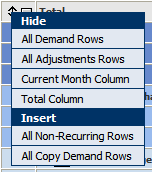 Click an option to modify the grid. For example, if you click All Demand Rows under Hide, then all Demand rows will not appear on the page. After hiding a row, that row will be listed under Insert in the menu and vice-versa.
|
Use the Demand Summary page
Related topics