Using Graphs
Some pages utilize ZingChart, which is a JavaScript charting library that supports interactive charts and graphs for web applications. The charts on these pages have this enhanced functionality:
• Demand Summary
• Demand
• Demand/Forecast Graph on the Interactive Planner Worksheet
• Demand/Forecast Stream Graph on the Interactive Planner Worksheet
• Time Series Graph on the Interactive Planner Worksheet
• Graphs that are on containers that use Layout Manager
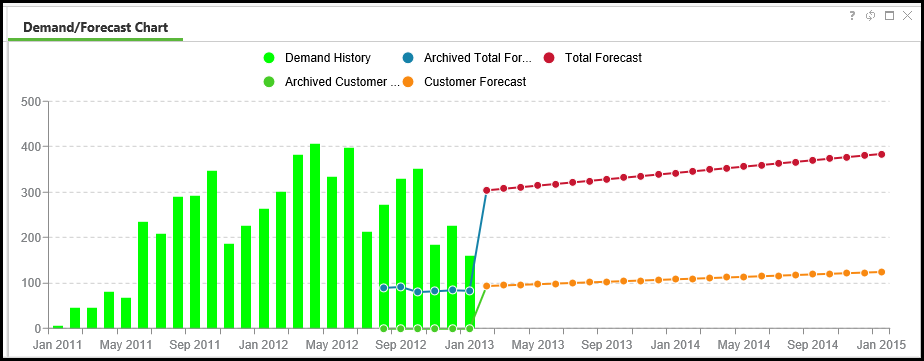
These are some things you can do to customize the display and obtain more information about the underlying data.
|
Action
|
Description
|
Usage
|
||
|---|---|---|---|---|
|
Legend
|
The legend consists of two parts:
• The color of a circle corresponds to the color of a line, point, or bar on the graph.
• The title of the data that is represented is displayed next to the colored circle.
|
Click a legend title or a colored circle. When clicked, the data corresponding to that legend title is either displayed or hidden.
• Click a legend title or colored circle to remove it from the display. The data is removed and the title and circle are grayed out.
• Click a legend title or colored circle that is grayed out to add it to the display. The data is added and the title and circle are no longer grayed out.
|
||
|
Mouse hover
|
There are areas on the graph that display additional data when you move the mouse over them.
|
Hover the mouse over the bar, line, or point to display more information about the data that is represented by that bar, line, or point.
|
||
|
Right-click
|
When the servigistics.enableZingChartPlatform property must be set to True there are additional actions that can be performed.
|
Right-click anywhere on the graph to open a menu of actions.
|

