TMR
The acronym TMR is used in many places throughout the Servigistics application.
See also
|
Reference
|
How Used
|
|---|---|
|
Top Most Revision
|
In Supply Planning, TMR stands for Top Most Revision.
|
 |
On Performance Analytics and Intelligence dashbboards, TMR is a filter
A dashboard filter that can be applied to show data for Top Most Revision (TMR) parts. This filter can be applied on the following dashboards:
◦ System Fill Rate mini-dashboard
◦ Fill Rate Trend widget
There are two methods for defining TMR filters:
• Method 1 – Used on these pages:
◦ Backorder Days
◦ Demand Miss Analysis
◦ Fill Rate Analysis
◦ Service Group Fill Rate Detail
• Method 2 – Used on these pages
◦ Performance 360 Advanced
|
Define TMR Filter – Method 1
Use these instructions to define a TMR filter on the following dashboards:
• Backorder Days
• Demand Miss Analysis
• Fill Rate Analysis
• Service Group Fill Rate Detail
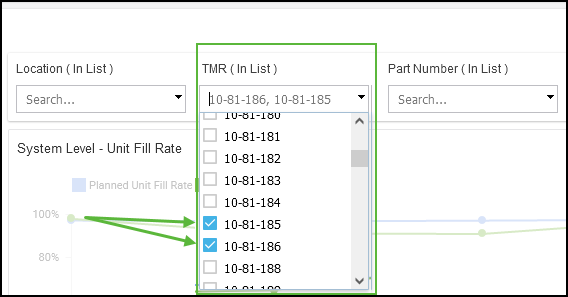
1. Select one or more TMR parts from the TMR filter selection box.
2. {optional} Select one or more parts in the Part Number filter selection box.
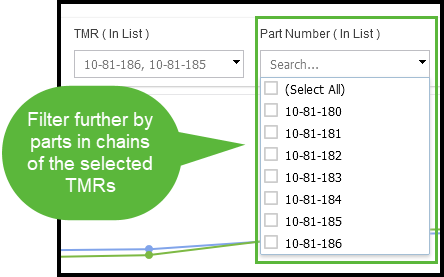
The Part Number selection box contains part numbers based on the dashboard:
Dashboard | Part Number Selection Box |
|---|---|
Backorder Days | • Today’s TMR Part that is selected in the TMR filter • All replaced parts of the current part chain structure of the TMR. |
Demand Miss Analysis Fill Rate Analysis Service Group Fill Rate Detail | • Today’s TMR Part that is selected in the TMR filter • Parts that were TMR in the past of the current part chain structure of the TMR. |
3. Dashboard are displayed with all the parts in the chain for the selected TMRs.
Define TMR Filter – Method 2
Use these instructions to define a TMR filter on the Performance 360 Advanced dashboard.
1. Select  on the Fill Rate Trend widget.
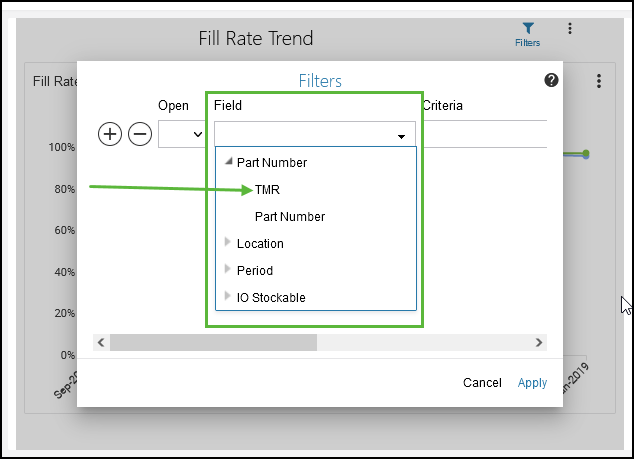
on the Fill Rate Trend widget.2. Click the Field selection box, expand Part Number and select TMR.
3. Click the Value selection box and select one or more TMR parts.
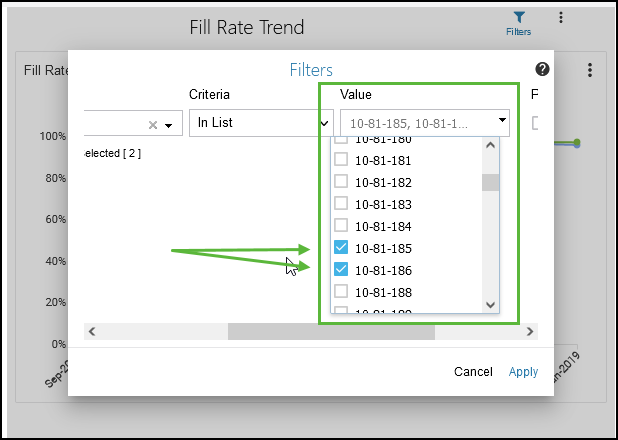
4. Click Apply. The Fill Rate Trend widget is updated with the data for the selected TMR parts.