Ordering Price Approval Workflows
 |
• The default price approval workflow will always have the last order sequence, and this cannot be changed.
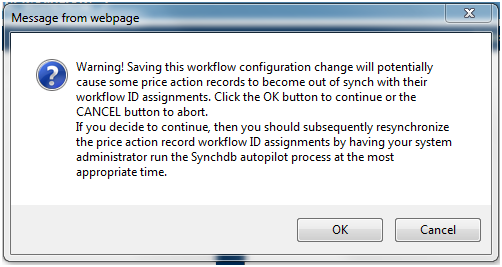
• Changing the workflow order sequence could cause some price action records to become out of synch with their present approval workflow. It is always advisable to run the AutoPilot Synchronize Database process after any changes are made to the order sequence for the Price Approval Workflows. When you save a sequence change, the following warning message appears:
 |
The order sequence in which price approval workflows are listed on the Price Approval Workflow page is significant. It is possible for a SKU to be present in the segment coverage of more than one price approval workflow. However, a SKU can be exclusively assigned to only one workflow. A top-down ordering sequence is followed. The first (top) workflow listed on the Price Approval Workflow page to which a SKU is included will be used to process the SKU for pricing approval.
To change the order sequence of price approval workflows, follow these steps.
2. Click the Change Sequence button ( ). The Change Sequence window appears.
). The Change Sequence window appears.3. The workflows are listed in order sequence from first (top) to last (bottom). To change the sequence, highlight a workflow and click the:
Move Up button ( ) to move the selected workflow up one row in the list.
) to move the selected workflow up one row in the list.Move Down button ( ) to move the selected workflow down one row in the list.
) to move the selected workflow down one row in the list.Move To Top button ( ) to move the selected workflow to the top of the list.
) to move the selected workflow to the top of the list.Move To Bottom button ( ) to move the selected workflow to the bottom of the list.
) to move the selected workflow to the bottom of the list.4. When you are finished, click Save.
|
|
The default price approval workflow will always have the last order sequence, and this cannot be changed.
|