Customize the Display of the Breadcrumb Trail
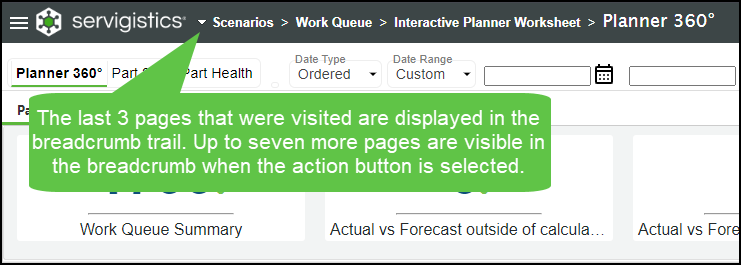
The breadcrumb trail is built from the history of pages you have visited. If you are on the Planner 360° page and then open the Scenarios page, your breadcrumb trail will look like this:

These are the global settings that control how the breadcrumb is displayed:
|
Global Setting
|
Description
|
Default Setting
|
||
|---|---|---|---|---|
|
BREADCRUMB_TRAIL_ENABLED
|
Determines when the breadcrumb trailis displayed. Valid entries are:
• true — display the breadcrumb trail
• false — hide the breadcrumb trail
|
true
|
||
|
BREADCRUMB_TRAIL_MAX_LINE_ITEMS
|
Determines the number of page names to display in the breadcrumb trail before displaying a dropdown action button. Click
 to display the additional page names. Valid entries are: to display the additional page names. Valid entries are:• 0 — Only display the page title, with all historical pages referenced by clicking
• > 0 — Display this number of historical pages visited before the page title, with additional historical pages referenced by clicking
|
3
|
||
|
BREADCRUMB_TRAIL_MAX_OVERALL_ITEMS
|
Determines the maximum number of page names to keep in the historical listing. Valid entries are:
• 0 — No historical items are displayed in the breadcrumb trail
• >0 — Display up to this number of historical pages visited
|
10
|

Here are a few examples of how your breadcrumb trail could be configured to display.
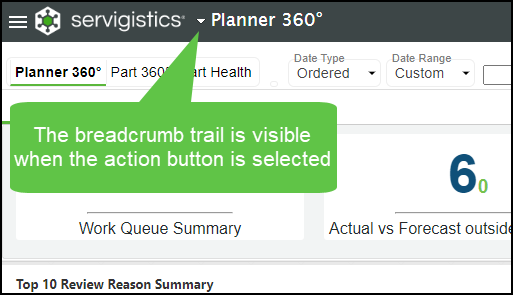
Example 1
• BREADCRUMB_TRAIL_ENABLED = true
• BREADCRUMB_TRAIL_MAX_LINE_ITEMS = 0
• BREADCRUMB_TRAIL_MAX_OVERALL_ITEMS = 10
Example 2
• BREADCRUMB_TRAIL_ENABLED = true
• BREADCRUMB_TRAIL_MAX_LINE_ITEMS = 3
• BREADCRUMB_TRAIL_MAX_OVERALL_ITEMS = 10
Learn more about customizing the header