Model Cost Optimization and Perform Profit Analysis
This workflow can be used to help you solve business problems such as determining how much additional investment is needed to increase fill rate targets by a certain percentage. The process is repeatable, meaning you can copy a scenario, make adjustments, calculate and review. If the results are not acceptable, you can make additional adjustments, calculate, and review again.
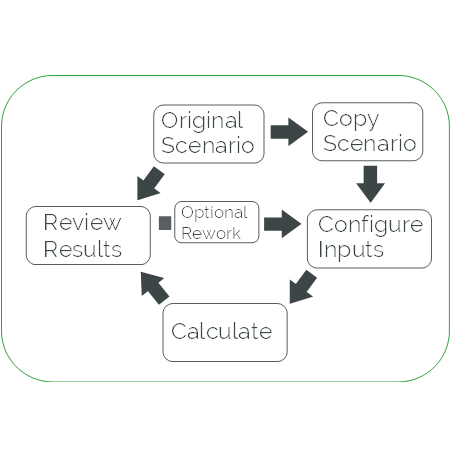
Let’s use the example of increasing fill rate targets in the following workflow. Our goal is to determine what additional investment is needed to increase a fill rate target from 92% to 96%. You can use these instructions to guide you through the process and analysis steps.
1. The first step is to open the Scenarios page and make a copy of the Scenario you are trying to model.
Open the Scenarios page in the application
1. Select the Scenario that you are trying to optimize.
2. Click Run on the toolbar and select Copy.
3. In the pop-up window, enter a new name for the copy of the Scenario, for example, Location at 96 Percent, and click OK.
4. Take note of the assigned Optimization Set, as it is needed in the next step.
2. Now that you have a copy of your Scenario, the next step is to open the Optimization Set page and make a copy of the Optimization Set that is assigned to the original scenario.
Open the Optimization Set page in the application
1. From the Scenarios page, click  on the toolbar and select Optimization Set to navigate to the Optimization Set page .
on the toolbar and select Optimization Set to navigate to the Optimization Set page .2. Select the Optimization Set that is assigned to the original Scenario.
3. Click Run on the toolbar and selected Copy Optimization Set.
4. In the pop-up window, enter a new name for the copy of the Optimization Set, for example, 96 Percent Fill Rate and click OK.
5. Take note of the assigned Service Group, as it is needed in the next step.
3. The next step after making a copy of the Optimization Set is to open the Service Group Parameters page and make a copy of the Service Group that is assigned to the original Optimization Set.
Open the Service Group Parameters page in the application
1. From the Optimization Set page, click on the toolbar and select Service Group Parameters to navigate to the Service Group Parameters page.
on the toolbar and select Service Group Parameters to navigate to the Service Group Parameters page.2. Select the Service Group that is assigned to the original Optimization Set.
3. Click Run on the toolbar and selected Copy Service Group.
4. In the pop-up window, enter a new name for the copy of the Service Group, for example, 96 Percent Fill Rate and click OK.
5. Now, edit your copy of the Service Group. Select the Service Targets tab and do the following:
1. Update the Customer Network Fill Rate to 96.
2. Click Save.
4. Now that you have an updated copy of the original Service Group, you can go back to the Optimization Set page and assign the newly copied Service Group (96 Percent Fill Rate) to the newly copied Optimization Set (96 Percent Fill Rate).
Open the Optimization Set page in the application
1. Enter Optimization Set in the Go to box to search for the page, then select the page from the resulting list of matches.
2. Edit the newly copied Optimization Set.
3. In the pop-up window, select the Service Groups tab. The newly copied Service Group should appear in the Available listing, and you can select it and move it from the Available list to the Selected list. Verify that the newly copied Service Group is the only Service Group in the Selected list and then click Save.
5. The last configuration step is to assign the newly copied Optimization Set (96 Percent Fill Rate) to the newly copied Scenario (Location at 96 Percent). You can do this by modifying the Scenario on the Scenarios page.
Open the Scenarios page in the application
1. From the Optimization Set page, click on the toolbar and select Scenarios to navigate to the Scenarios page.
on the toolbar and select Scenarios to navigate to the Scenarios page.2. Edit the newly copied Scenario.
3. In the pop-up window, look for the Optimization Set setting, and select the newly copied Optimization Set from the drop-down list.
4. Click Save.
6. Now that all the configuration settings are complete, you can calculate the newly copied Scenario on the Scenarios page.
1. Select the newly copied Scenario, click Run on the toolbar and select Calculate.
2. Click OK on the confirmation window that appears to confirm the request.
3. Click on the toolbar to refresh the page. The calculation is complete when the Status of the Scenario is Complete.
7. When the calculation is complete, you will have the original Scenario that had a fill rate target of 92% and a comparison Scenario that you configured from a copy of the original Scenario but with a fill rate target of 96%. You are now ready to compare these two Scenarios using any of the following budget summary pages:
1. While you are still on the Scenarios page, click  that is next to the copied Scenario and select a budget summary page to review.
that is next to the copied Scenario and select a budget summary page to review.2. On the toolbar of the budget summary page, the Scenario A selection should be the newly copied Scenario. Set the Scenario B selection to the original Scenario.
3. Now you can see how much inventory and extra cost would be required to increase the fill rate by just 4 percent.
8. You can explore results by using other inputs on the Service Group.
1. Repeat step 3e to modify the targets on the newly copied Service Group.
2. Repeat step 6 to recalculate the newly copied Scenario.
3. Repeat step 7 to compare the results.