Review Rules
Review rules are used to set up test conditions. If a rule's conditions are met, Servigistics reports back which SKUs have met the condition.
Review Rule Components
Rule Name
The name of the rule.
Target Pricing Stream
The pricing stream to be affected by the rule.
Test
The operator for the test (<, >, =, etc.).
Reference Group / Reference Point
First, select the reference group. Then, select the reference point within the selected reference group for the rule. Click here for definitions of all pricing reference points.
Adjustment
In the Adjustment section, you can set a test percentage in the Percent field or a test amount in the Amount field.
For example, if you were testing to see if the new recommended price was less than current price and entered 10 in the Percent field, you are testing if the new recommended price is less than the current price + 10%. If you entered 10 in the Amount field, you are testing if the new recommended price is less than current price + $10.
Strategy Codes
In the Strategy Codes section, you select the strategy codes for the rule. Parts/SKUs are assigned to a strategy code when they are set up, and rules only test parts with the same assigned strategy code. This means that if a part is assigned to strategy code 3, a rule set up for strategy code 1 will not test this part.
To add a strategy code to the rule, highlight it in the Available box and then click the Add button ( ). To remove a strategy code from the rule highlight it in the Selected box and click the Remove button (
 ).
).
). To remove a strategy code from the rule highlight it in the Selected box and click the Remove button ().Filters
[Optional] In the Filters section, apply filters to the rule.
Review Rule Example
Following is an example of a Review rule:
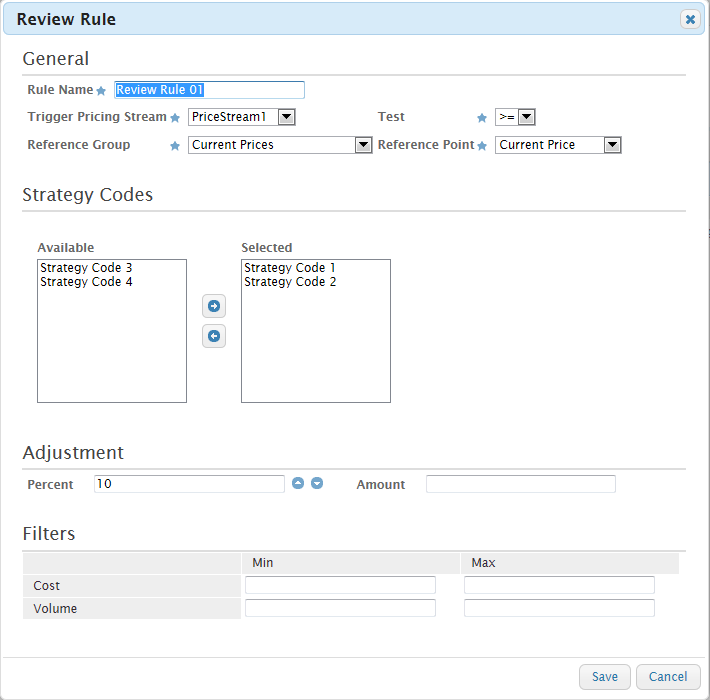
In this example, any SKU in Strategy Codes 1-2 that has a PriceStream1 new recommended price that is equal to or above the current price + 10% will be flagged for review.
To view Pricing Review rule results:
After running the pricing policy simulation process, SKUs that meet the conditions of Pricing Review rules generate simulation pricing Review Board records for the SKUs.
These simulation pricing Review Board records can be viewed in the following places:
On the Pricing Policy page's Result tab - Review Count section
The Review Count ection on the Pricing Policy page's Result tab displays a chart and grid showing the number of Review Board records generated for the SKUs in the selected pricing policy.
On the Pricing Policy page's Result tab - Details section
On this tab there is a Review Count column. Also, in the Details section you can click Price Pair Properties Dashboard from the action button for a SKU to open the Pricing Worksheet. On the Pricing Worksheet's General section, review counts for the SKU are posted to the Price Review Reasons tab. This is helpful when there are multiple review counts per SKU.
On the Price Action page
On this page there is a Review Count column. Also, on the Price Action page you can click the Go to Dashboard button for a SKU to open the Price Pair Properties Dashboard. On the Pair Dashboard's Pricing Worksheet tab, review counts for the SKU are posted to the Price Review Reasons tab. This is helpful when there are multiple review counts per SKU.