Criteria Builder Page
Lets you add or edit criteria rows (or conditions) for rules.
 |
When viewing, all fields are read-only and cannot be changed.
|
The Field, Operator, and Value fields function together to form an equation that defines the selection criterion.
|
Component
|
Description
|
||
|---|---|---|---|
|
Field
|
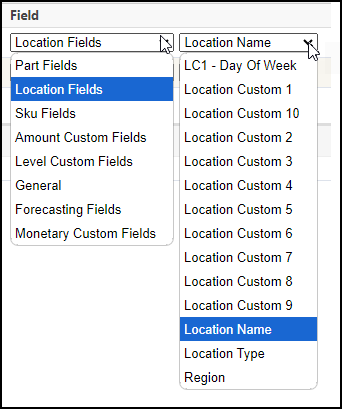
This is the entity being evaluated. There are two dropdown lists; one for selecting the type of field, and another for selecting the field to be evaluated. For example:
 |
||
|
Operator
|
This is the type of evaluation. There is a dropdown list of options that are relevant to the Field selection. For example:
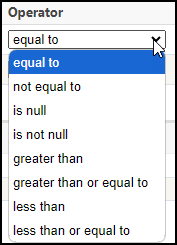 For character fields, you can set the Operator to evaluate a portion of the Field.
• Use starts with, does not start with and enter only the first few characters in the Value field.
• Use ends with, or does not end with and enter only the last few characters in the Value field.
• Use contains or does not contain and enter a few characters that are not the first or last in the Value field.
|
||
|
Value
|
This is the operand. The value of the selected Field is compared to this entry using the selected Operator. For example:
• Texas, if the Field selection is Location Name
• 124.99, if the Field selection is Part Cost
When the Operator is set to is null or is not null, the Value field is not applicable.
|

You can combine more than one criterion for Segment Coverages and filter clauses by using And and Or connectors.
• When criterion is joined using And, a record must match both clauses to be included in the resulting set of data. For example, Location Name is Texas And Part Cost is $50.00. A part in Texas that has a Part Cost of $51.00 is not included in the resulting set of data.
• When criterion is joined using Or, a record must only match one of the clauses to be included in the resulting set of data. For example, Location Name is Texas Or Part Cost is $50.00. A part in Texas that has a Part Cost of $51.00 is included in the resulting set of data. A part in New York that has a Part Cost of $50.00 is also included in the resulting set of data.
To edit a criteria row:
Edit the fields for the row directly on the page.
To add a criteria row:
1. Click the Add button ( ). A blank new row appears.
). A blank new row appears.2. Enter the settings for the criteria as necessary.
3. Set the And and Or connectors.
4. Click Save to save your changes and close the page.
To delete a criteria row:
Click the Remove button ( ) for the row you want to delete.
) for the row you want to delete.To group criteria rows:
If you want to group several criteria rows together, before you add the row, click the Group button (). Then, add the criteria rows.
To reorder criteria rows:
To reposition a criteria row in the list, click and drag the Reorder button ( ) for the row. Release the mouse button when you have positioned the row in its new, desired position in the list.
) for the row. Release the mouse button when you have positioned the row in its new, desired position in the list.